Wireless CarPlay Keeps Disconnecting Heres the Fix

The direct answer: wireless CarPlay disconnects are caused by Wi-Fi interference, outdated software, phone overheating, or power management settings, and most can be fixed without new hardware. Start with software updates and re-pairing before considering adapters or head unit replacement.
Wireless CarPlay keeps disconnecting for many drivers, and the good news is that most disconnection causes are fixable without replacing your vehicle or your phone. This guide walks through what the problem means, why it happens, and the practical steps you can take to get a stable connection back.
- Update first: Check for iOS and vehicle firmware updates before any hardware changes.
- Re-pair from scratch: Forget the vehicle in CarPlay settings and re-pair to clear connection errors.
- Check interference: Disconnects at specific locations point to Wi-Fi interference, not hardware failure.
- Watch phone health: Overheating and Low Power Mode can trigger disconnects.
- Know when to call a pro: Persistent issues may require dealer firmware updates or professional diagnosis.
Direct Answer: What wireless CarPlay Keeps Disconnecting Means for Owners and Drivers
When wireless CarPlay drops its connection, the infotainment screen typically returns to the home screen, navigation stops mid-route, audio cuts out, and the phone may or may not show that it is still connected. For a driver, this is more than an annoyance: it can mean losing turn-by-turn directions in unfamiliar areas, missing a call, or fumbling with controls while driving.
For vehicle owners, the problem often signals an underlying issue with the phone, the car’s infotainment system, or the environment around the vehicle. The most frequently reported causes include Wi-Fi interference, outdated iOS or head-unit firmware, aggressive phone power-management settings, and a weak Bluetooth handshake that fails to maintain the connection.
The key point to understand is that wireless CarPlay uses two separate wireless connections. Bluetooth handles the initial handshake and some basic functions, while a dedicated Wi-Fi link (typically on the 5 GHz band) carries the high-bandwidth data for maps, audio, and apps. If either connection drops, CarPlay disconnects. This dual-connection design is why the problem can be intermittent and why it often appears to happen at specific locations or under certain conditions.
How It Works and What It Can Actually Do
Wireless CarPlay is an extension of Apple’s CarPlay platform that eliminates the need for a USB cable. When you start your car, the head unit and your iPhone perform a Bluetooth handshake to establish trust. Once that handshake completes, the system switches to a Wi-Fi connection that streams the CarPlay interface to the vehicle’s display. The Wi-Fi link is also responsible for audio, maps, and app data.
Because the Wi-Fi connection is the backbone of the system, anything that disrupts it will cause a disconnect. Common disruptors include:
- Wi-Fi congestion: Dense urban areas, shopping centers, or neighborhoods with many overlapping networks can interfere with the 5 GHz band your car uses.
- Phone overheating: When an iPhone gets hot, it may reduce wireless activity to cool down, which can drop the CarPlay connection.
- Low Power Mode: iOS Low Power Mode can limit background wireless activity, and some users report disconnects when it is enabled.
- Outdated software: Both iOS and the car’s infotainment firmware receive updates that fix connectivity bugs. Running an older version on either side can perpetuate disconnects.
- Multiple paired devices: If several phones are paired to the car, the system may switch between them or struggle to maintain a stable connection.
What wireless CarPlay can actually do when it is working properly is mirror your iPhone’s compatible apps onto the car’s display, including Apple Maps, Google Maps, Waze, Music, Podcasts, Messages, and supported third-party apps. It also supports Siri voice control, so you can send messages, make calls, and change music without taking your hands off the wheel.
Vehicle Compatibility and Installation Requirements
Wireless CarPlay is not available in every vehicle. It requires a head unit with built-in wireless CarPlay support, which is more common in newer vehicles but absent from many models manufactured before roughly 2019. If your car only supports wired CarPlay, you have two options: use a USB cable, or install an aftermarket wireless CarPlay adapter that plugs into the USB port and bridges the gap.
Check: Verify that your vehicle’s make, model, year, and trim level support wireless CarPlay. Check the owner’s manual or the manufacturer’s website for the specific trim and infotainment package. Limitations: Some vehicles with wired CarPlay cannot be upgraded to wireless without an aftermarket adapter, and some older head units lack the required Wi-Fi hardware entirely.
For aftermarket adapters, installation is generally straightforward: plug the adapter into a USB port, pair your phone, and use it. However, not all adapters are compatible with all vehicles or all iPhone models. Before purchasing, verify that the adapter lists your specific vehicle and iPhone model as compatible, and check the manufacturer’s website for firmware update support.
If you are considering a new head unit to gain wireless CarPlay, the installation is more involved. It typically requires removing the factory head unit, wiring the new unit to the vehicle’s power and speaker systems, and in some cases integrating with the vehicle’s steering wheel controls. For most drivers, professional installation is recommended, especially in newer vehicles where the head unit is integrated with other systems such as climate control or vehicle diagnostics.
Safety, Visibility, Power, and Driver-Use Considerations
When wireless CarPlay disconnects while you are driving, the immediate temptation is to reach for your phone to fix it. That is the wrong move. Fumbling with a phone while driving is a significant distraction and increases the risk of an accident.
Phone placement also matters. Many drivers mount their phone on a dashboard vent or windshield mount while using CarPlay. A poorly placed mount can block the driver’s view of the road, the instrument cluster, or the infotainment screen. It can also expose the phone to direct sunlight, which accelerates overheating and can trigger the disconnection issue.
Power is another factor. Wireless CarPlay does not charge the phone through a cable, so the phone relies on its battery or a separate charging cable. If the phone is running low on battery and the car’s wireless charging pad is not providing enough power, the phone may enter a power-saving state that disrupts the Wi-Fi connection. Some drivers find that plugging the phone into a USB charger while using wireless CarPlay eliminates the problem.
Features, Limitations, and Ownership Costs
Wireless CarPlay offers the same core features as wired CarPlay: navigation, audio, messaging, phone calls, and Siri voice control. The wireless convenience is the main benefit, but it comes with trade-offs. Wireless connections are inherently less stable than a physical cable, and the phone will drain its battery faster because it is actively using Wi-Fi and Bluetooth simultaneously.
Another limitation is that wireless CarPlay may not support every feature that wired CarPlay does, depending on the vehicle. Some head units, for example, do not transmit audio over the Wi-Fi link and instead use Bluetooth for audio, which can introduce latency or reduced audio quality. Check your vehicle’s manual to understand exactly which features are supported over the wireless connection.
For owners who decide to fix the problem by replacing the head unit, the cost is the highest of all options. A new head unit with wireless CarPlay support requires both the hardware cost and, in many cases, professional installation. For drivers who want a quick fix, an aftermarket wireless adapter is the most affordable path, provided their vehicle has a USB port and supports wired CarPlay.
Setup, Testing, and Maintenance
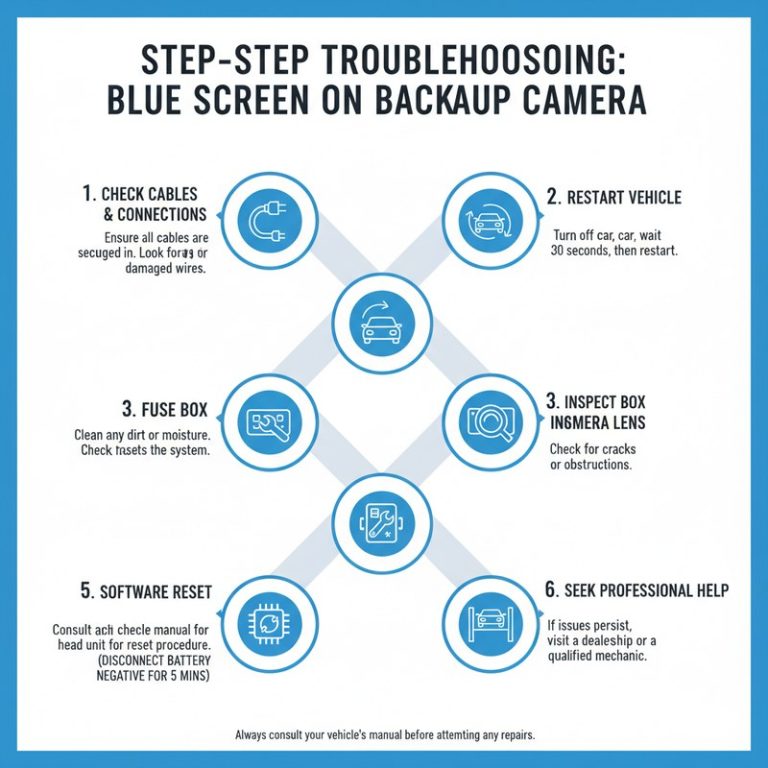
Troubleshooting wireless CarPlay disconnects follows a logical progression. Start with the simplest fixes and work your way up to more involved solutions.
Check for iOS updates on your iPhone and firmware updates for your vehicle’s infotainment system. Outdated software is a leading cause of connectivity bugs.
On your iPhone, go to Settings, then General, then CarPlay, and forget your vehicle. Delete the vehicle from your car’s Bluetooth and Wi-Fi paired devices as well. Then pair the phone again from scratch.
If disconnects happen at specific locations, look for nearby Wi-Fi networks, toll transponders, or other electronic devices that may be causing interference. Try disabling Wi-Fi on other devices in the car.
Disable Low Power Mode, check that Wi-Fi is enabled on the phone, and make sure the phone is not overheating. Remove any phone case that might be trapping heat or blocking wireless signals.
Park the car, start the engine, and test the connection for several minutes. If it stays connected while parked but drops while driving, the issue is likely interference or a power problem.
Common Mistakes and When to Get Professional Help
Several mistakes can make wireless CarPlay disconnection problems worse. One of the most common is ignoring software updates on either the phone or the car. Another is assuming the problem is a hardware failure when it is actually a simple configuration issue. Some drivers also make the mistake of pairing the phone to the car’s Bluetooth and Wi-Fi separately, which can confuse the system and lead to connection drops.
- Update iOS and vehicle firmware regularly
- Forget the vehicle and re-pair from scratch when issues persist
- Test the connection while parked before driving
- Check for environmental interference at problem locations
- Attempt to troubleshoot while driving
- Ignore software update notifications
- Assume a new head unit is required without trying software fixes first
- Leave a phone in direct sunlight while using CarPlay
If you have tried all the basic troubleshooting steps and the problem persists, it may be time to consult a professional. A qualified car audio installer or the dealership’s service department can diagnose whether the issue lies in the head unit, the vehicle’s antenna system, or the phone. In some cases, a firmware update for the head unit that is not available over the air may need to be applied by a dealer or installer.
You should also check whether your vehicle has any open recalls or technical service bulletins (TSBs) related to the infotainment system. Automakers occasionally issue TSBs that address known CarPlay connectivity problems, and the fix may be covered under warranty.
Final Recommendation
Wireless CarPlay disconnects are almost always fixable with a combination of software updates, re-pairing, and environmental adjustments. Start with the simplest and least expensive solutions before considering hardware replacement. The vast majority of owners who follow a systematic troubleshooting approach resolve the issue without spending money on new equipment.
If your vehicle does not support wireless CarPlay at all, an aftermarket adapter is the most cost-effective way to add the feature. If your vehicle does support it but the connection is unreliable, work through the troubleshooting steps in this guide, and do not hesitate to involve a professional if the issue persists.
- Best for: Drivers who want the convenience of wireless CarPlay without the hassle of cables and who are willing to spend a little time troubleshooting.
- Think twice if: Your vehicle does not support wireless CarPlay and you are not prepared to purchase an adapter or replace the head unit.
- Next step: Check for software updates on both your iPhone and your vehicle, then re-pair the connection from scratch.
Frequently Asked Questions
Wireless CarPlay uses two wireless connections: Bluetooth for the initial handshake and Wi-Fi for data streaming. Disconnects can occur due to Wi-Fi interference, outdated software on your phone or car, phone overheating, low power mode, or multiple paired devices competing for the connection.
Start by updating iOS and your vehicle’s infotainment firmware. Then forget the vehicle in your iPhone’s CarPlay settings and re-pair from scratch. Check for Wi-Fi interference at locations where disconnects occur, and disable Low Power Mode on your phone.
Yes, a thick or metal phone case can interfere with Wi-Fi and Bluetooth signals, especially if it traps heat and causes the phone to overheat. Try removing the case to see if disconnects stop.
Yes, automakers release firmware updates for infotainment systems that often fix CarPlay connectivity bugs. Check your vehicle manufacturer’s website or visit a dealership to see if an update is available for your model.
If your vehicle only supports wired CarPlay, a wireless adapter can add wireless functionality. However, if your vehicle already supports wireless CarPlay and is experiencing disconnects, an adapter will not help and you should focus on troubleshooting the existing system.
If you have updated all software, re-paired the connection, checked for interference, and the problem persists, a qualified car audio installer or dealership service department can diagnose the issue. Check for technical service bulletins or recalls related to the infotainment system first.