You get a dependable rear view without cutting wires, but only if you choose a system on a less congested frequency like 5GHz and mount the camera away from metal. Remember that interference from routers or other vehicles can still cause dropouts, so always treat the display as an aid, not a substitute for mirrors.
Wireless backup camera interference is one of the most common reasons drivers give up on an otherwise useful safety upgrade, turning a clear rear view into a frustrating screen full of static, frozen frames, or a signal that drops at the worst possible moment. If you are considering a wireless camera, or you already installed one and the picture is unreliable, this guide explains what causes the interference, how to fix it, and when a wired system is the smarter choice. We cover the practical realities of radio signals inside and around a vehicle, the installation mistakes that make interference worse, and the signs that tell you whether the problem is interference or a failing camera.
Key Takeaways
Signal Congestion: Wireless backup cameras operating on 2.4GHz can suffer dropouts near Wi-Fi routers, Bluetooth devices.
Safety Risk: Interference-induced lag or frozen frames can hide pedestrians or obstacles, making a hardwired connection.
Installation Pitfalls: Poor antenna placement (e.g., tucked behind metal bumpers) worsens interference; test the signal path.
Ownership Cost: Budget models with weak receivers often require expensive signal boosters or return shipping fees.
Privacy & Legal: Unencrypted wireless feeds can be intercepted by neighbors or thieves in parking lots, so.
What Is Wireless Backup Camera Interference?
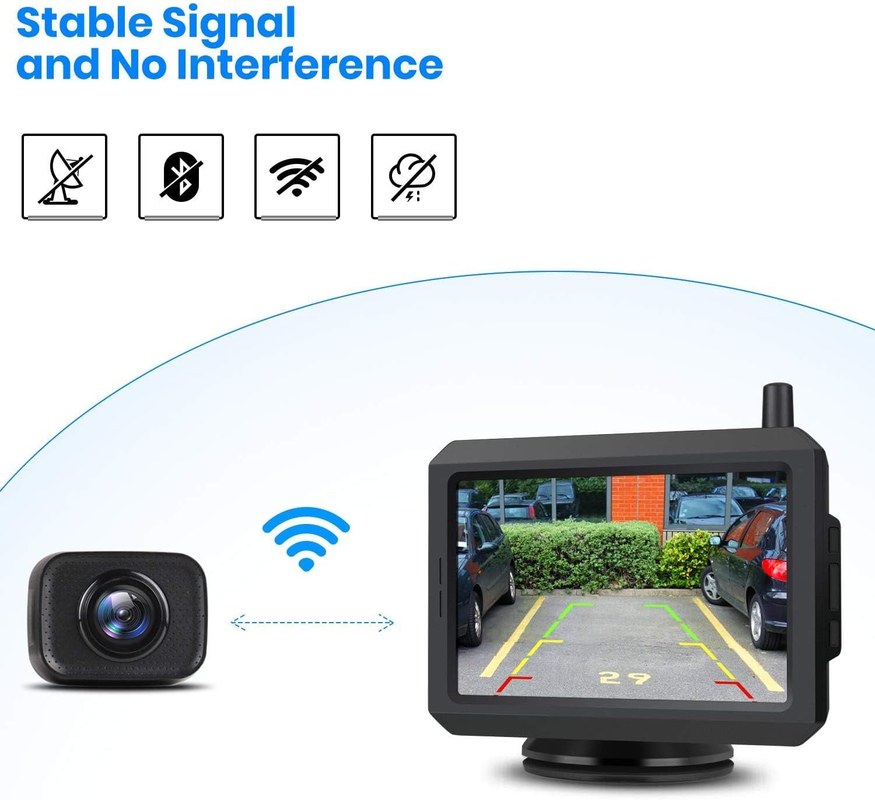
A wireless backup camera sends video from a transmitter near the license plate or rear bumper to a receiver connected to a display inside the cabin. Instead of a video cable running the length of the vehicle, the signal travels through the air on a radio frequency, typically in the 2.4 GHz or 5.8 GHz band. Interference happens when another radio signal, an electrical noise source, or a physical obstruction degrades that wireless link, so the receiver gets a weak, corrupted, or interrupted stream of data.
Interference can be constant, intermittent, or tied to specific conditions such as engine speed, nearby Wi-Fi networks, or even the position of the vehicle. The result is the same: a backup camera that you cannot trust when you need it most.
Common Causes of Wireless Backup Camera Interference
Wireless signals from other devices can disrupt backup camera video feed.
Radio Frequency Congestion in the 2.4 GHz Band
The 2.4 GHz band is crowded. Wi-Fi routers, Bluetooth devices, garage door openers, baby monitors, and other wireless cameras all operate in the same general frequency range. In a residential neighborhood or a busy parking lot, your camera transmitter is competing with dozens of other signals. Analog wireless cameras are especially vulnerable because they have no error correction; a stronger nearby signal can simply overpower the video feed.
5.8 GHz Systems and Their Trade-Offs
Many newer wireless backup cameras use the 5.8 GHz band to avoid congestion. The higher frequency carries more data and faces less competition from common household devices. The trade-off is that 5.8 GHz signals do not penetrate solid objects as well as lower frequencies. Metal body panels, tailgates, and even a thick rear window can weaken the signal more than you might expect.
Electrical Noise from the Vehicle
Your vehicle itself can be a source of interference. The alternator, ignition system, fuel pump, and even LED lighting can generate electromagnetic noise that leaks into the camera’s power supply or the wireless signal path. This often shows up as horizontal lines, buzzing static, or a picture that degrades when you rev the engine.
Physical Obstructions and Antenna Placement
The transmitter antenna is usually mounted near the rear license plate. The receiver antenna may be tucked behind the dashboard or clipped to the windshield. Between them sits the entire vehicle: sheet metal, glass, seats, and in some cases, a cargo area full of gear. Every obstruction reduces signal strength. If the receiver antenna is hidden behind a metal bracket or buried under the dash, the signal may never arrive cleanly.
Distance and Vehicle Length
Wireless backup cameras have a limited range, and the advertised range is measured in open air, not through the structure of a vehicle. In a long SUV, van, or truck, the distance between the rear-mounted transmitter and the cabin-mounted receiver can push the signal to its limit, especially when the battery is low or the antenna is poorly positioned.
Interference from Other Vehicle Electronics
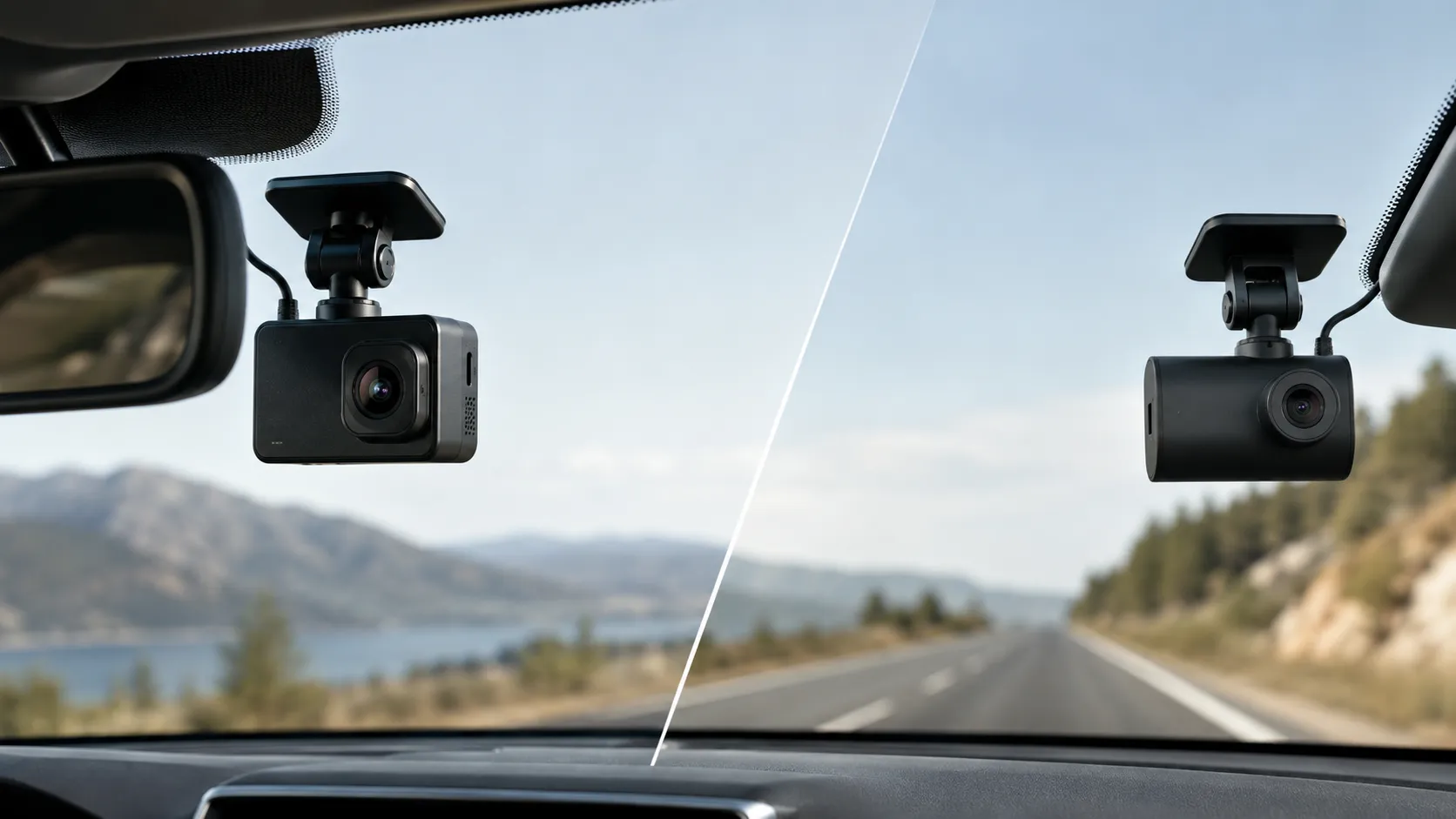
Aftermarket electronics such as radar detectors, dash cams, FM transmitters, and even phone chargers can generate radio noise or operate on overlapping frequencies. A dash cam mounted inches from the receiver antenna can be the hidden cause of a flickering backup camera display.
Signs Your Wireless Backup Camera Is Suffering from Interference
Interference does not always look the same. Common symptoms include:
Static, snow, or rolling horizontal lines across the display
Frozen frames that suddenly jump forward
Black screen that recovers after a few seconds
Image that appears and disappears as you drive
Color shifting or a washed-out picture
Delayed video that makes the camera feel laggy
Some of these symptoms can also point to a failing camera, a loose connection, or a weak battery. The key difference is timing. If the picture degrades when you start the engine, when you use another electronic device, or when you park near a specific location, interference is the likely culprit.
How to Troubleshoot Wireless Backup Camera Interference<
Interference from other wireless devices can cause signal loss in a backup camera.
/h2>
Work through these steps in order. Most interference problems are solved by one of these fixes.
1
Change the channel or frequency
Many wireless cameras offer multiple channels or frequency pairs. If yours has a channel switch on the transmitter and receiver, try each channel and check which one produces the clearest picture in your normal parking and driving locations.
2
Reposition the receiver antenna
Move the receiver antenna to a spot with a clearer line of sight to the rear of the vehicle. A windshield-mounted receiver often performs better than one buried under the dash. Test the picture before securing the antenna permanently.
3
Check the power source
If the camera is wired into the tail light circuit, the power may carry electrical noise from the vehicle. A cleaner power source, such as a dedicated fuse tap with a filtered power supply, can eliminate noise-related interference. Confirm the voltage requirements in the product manual before changing the power source.
4
Move or remove nearby electronics
Turn off or relocate dash cams, radar detectors, phone chargers, and other aftermarket devices one at a time. If the picture clears when a specific device is off, that device is the interference source.
5
Update firmware
Some digital wireless cameras receive firmware updates that improve signal handling. Check the manufacturer’s product page or support site for your exact model and follow their update instructions.
If you have worked through these steps and the picture is still unreliable, the problem may be a hardware failure rather than interference. Our guide to why your rear view camera is not working covers additional symptoms and checks for camera faults.
Installation Tips to Reduce Interference from the Start
Many interference problems are created during installation. Getting these details right the first time saves hours of troubleshooting later.
Route Cables Away from Noise Sources
Keep the camera’s power and video cables away from ignition coils, spark plug wires, the alternator, and high-current wiring. Crossing these at a 90-degree angle is acceptable, but running parallel to them for any distance invites electrical noise into the system.
Ground the Camera Properly
A poor ground connection is a common source of video noise. The camera’s ground wire should connect to a clean, bare metal surface on the vehicle frame, not to a rusty bolt or a plastic trim piece. If you are using a license plate mount, confirm that the mount itself does not isolate the camera from a good ground.
Position the Antenna for Line of Sight
If the camera has an external antenna, point it upward or toward the cabin rather than flat against the bumper. The receiver antenna should be as high and as unobstructed as practical. Test the signal with the trunk or tailgate open and closed, because the position of a rear door can dramatically change signal strength.
Use a Filtered Power Source
If your camera connects to the reverse light circuit, the power is only active when the vehicle is in reverse. That is convenient, but the reverse light circuit can carry electrical noise. Some owners report that adding a small inline power filter or using a relay triggered by the reverse light, powered directly from the battery, cleans up the picture. Confirm the camera’s voltage and current requirements before making any wiring changes.
When to Consider a Wired System Instead
Wireless cameras are convenient, but they are not always the right tool. If you drive a large vehicle, park in areas with heavy radio congestion, or simply want the most reliable picture possible, a wired system removes the radio link entirely and with it the most common causes of interference.
Wired cameras require running a video cable from the rear of the vehicle to the display, which is more work and takes more time. The trade-off is a signal that does not compete with Wi-Fi networks, Bluetooth devices, or electrical noise. For a detailed comparison of the two approaches, see our breakdown of wired vs wireless dual camera systems.
Digital vs. Analog Wireless Cameras
One of the biggest differences between wireless backup cameras is whether they transmit an analog or digital signal.
Analog cameras send a continuous radio wave that represents the video picture directly. They are simple and inexpensive, but they have no way to correct errors. Any interference shows up immediately as static or rolling lines.
Digital cameras convert the video into data packets and transmit those packets. The receiver can detect corrupted packets and reconstruct the data, which means digital systems generally handle interference better. The downside is that digital systems can freeze or drop the picture entirely when the signal is too weak, rather than degrading gradually like analog systems.
If you live in an area with heavy Wi-Fi congestion or park near other vehicles with wireless cameras, a digital 5.8 GHz system is usually a better choice than an analog 2.4 GHz system.
Choosing a Wireless Backup Camera That Resists Interference
Not all wireless backup cameras handle interference equally. Before you buy, look for these features:
Digital transmission rather than analog
5.8 GHz frequency operation, or a system with switchable channels
A receiver with an external antenna that can be positioned for better reception
Positive owner reviews that mention reliable performance in real vehicles, not just open-air range tests
Clear documentation about power requirements and installation
Vehicle Compatibility
Check: Verify that the camera’s mounting bracket fits your vehicle’s license plate area, tailgate, or bumper, and that the display works with your vehicle’s 12V system or existing monitor. Limitations: Some wireless cameras are designed for specific vehicle types; a camera meant for a sedan may not reach a receiver in a long pickup truck or van.
Our roundup of the best wireless reverse cameras explains which systems use digital transmission, which bands they operate on, and what owners report about real-world reliability.
Do and Don’t for Wireless Backup Camera Owners
Do
Test the camera in your actual parking and driving locations before finalizing the installation
Secure all cables and antennas so they cannot shift or loosen over time
Keep the camera lens and the transmitter antenna clean and free of debris
Check the manufacturer’s instructions for channel settings and firmware updates
Don’t
Block the driver’s view with a large receiver screen or mount
Cover airbags, factory sensors, or the vehicle’s original backup camera if one is present
Rely on an intermittent wireless picture as your only rear view
Ignore the product manual when it specifies a particular power source or grounding method
Final Verdict
Final Verdict
Best for: Drivers who want an easier installation than a wired camera and who can test the signal in their own vehicle before committing to a permanent setup.
Think twice if: You drive a long vehicle, park in radio-dense areas, or need a picture you can trust 100 percent of the time. A wired system may be the more reliable investment.
Next step: Before buying, confirm the camera’s frequency band, channel options, and power requirements, and plan the antenna positions while the vehicle is still in front of you.
Frequently Asked Questions
Most wireless backup cameras are universally compatible with cars, trucks, SUVs, and RVs, but you must verify the camera’s voltage and mounting style. Some vehicles with LED tail lights or certain electrical systems can generate interference, so checking compatibility with your specific make and model before purchase is essential.
To minimize interference, keep the transmitter and receiver away from metal surfaces, vehicle antennas, and high-voltage wiring. Positioning the receiver closer to the camera and avoiding parallel cable runs can also help maintain a stable signal.
Most wired-to-tail-light cameras draw very little power and only operate when the vehicle is in reverse, so they rarely cause battery drain. However, battery-powered wireless cameras can drain their own batteries quickly if left on, so always check for auto-on/off features and power-saving modes.
Laws vary by state and country, but most regions allow backup cameras while requiring that they do not obstruct the driver’s view or record audio without consent. If your camera has video recording or cloud features, check local privacy laws regarding surveillance and data storage.
Regularly inspect the antenna and receiver connections for corrosion or loose fittings, as these are common sources of intermittent interference. Also, keep the camera lens and transmitter clean, and update any firmware if the manufacturer offers it to improve signal stability.
Wireless cameras can suffer from signal lag, reduced range, or interference from other wireless devices, so they may not be as reliable as wired systems. Ownership costs include potential battery replacements every few months, occasional antenna repairs, and the need to verify that the camera’s frequency is legal and secure in your area.
Hi, I'm Ethan Carter, and I've spent over a decade testing automotive electronics, dash cams, and interior accessories. I created TopBestCar.com to help car owners cut through marketing hype and find gear that actually performs for their exact make and model — backed by hands-on testing, spec comparisons, and real owner feedback.