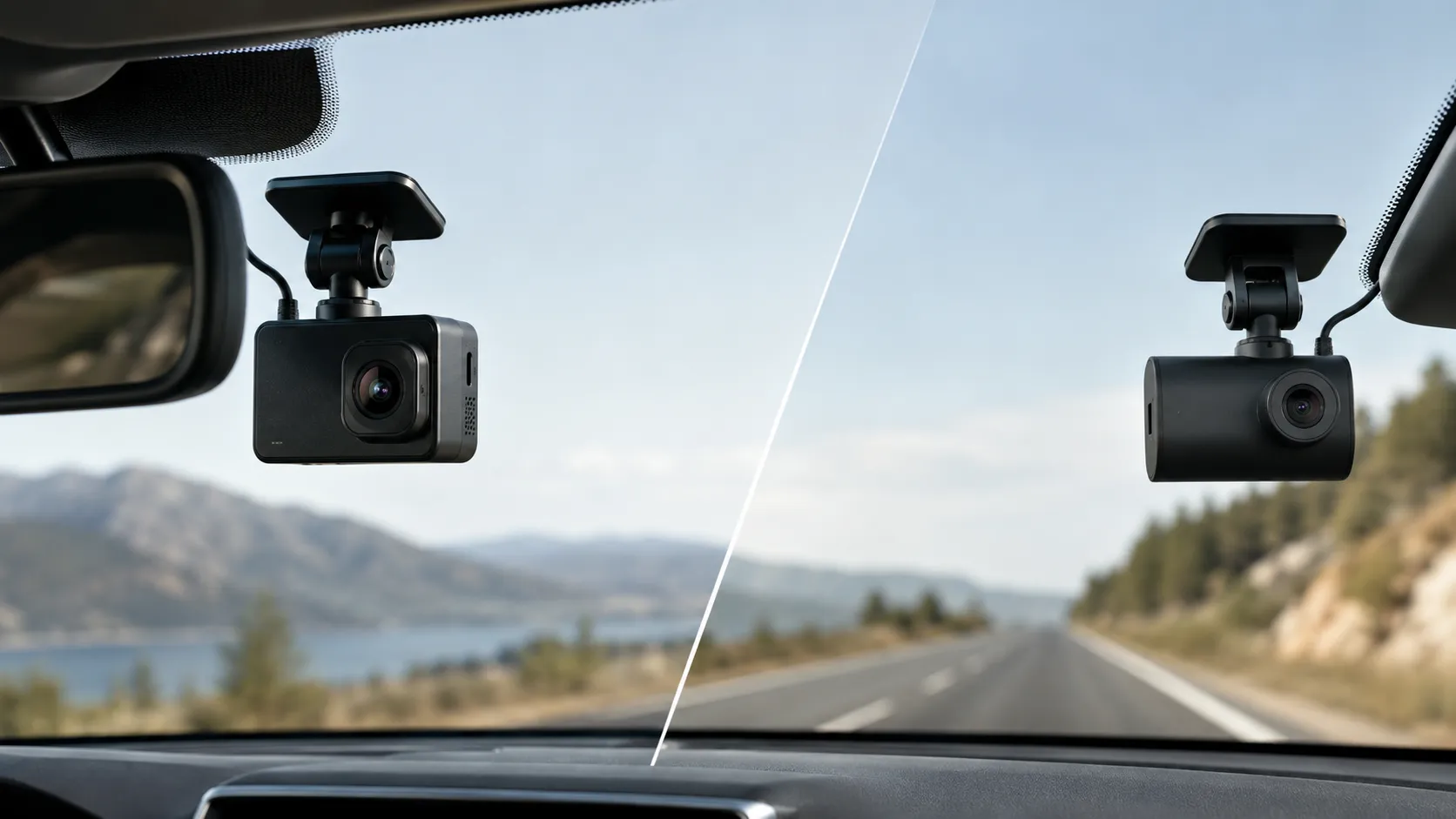
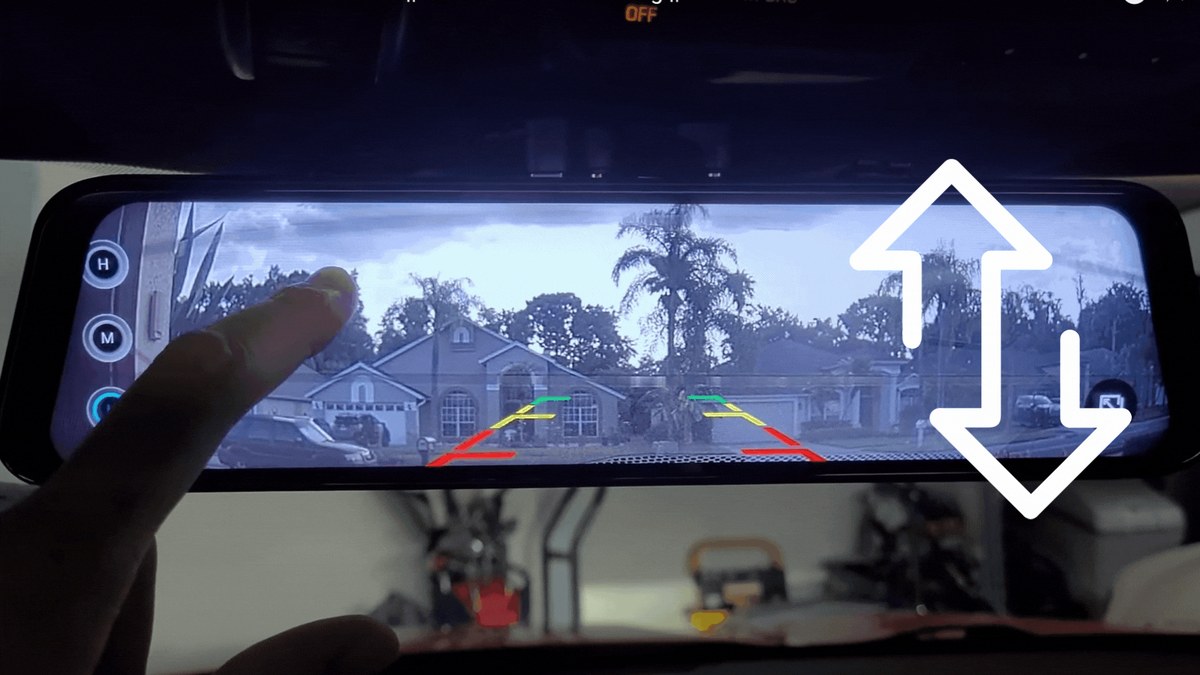
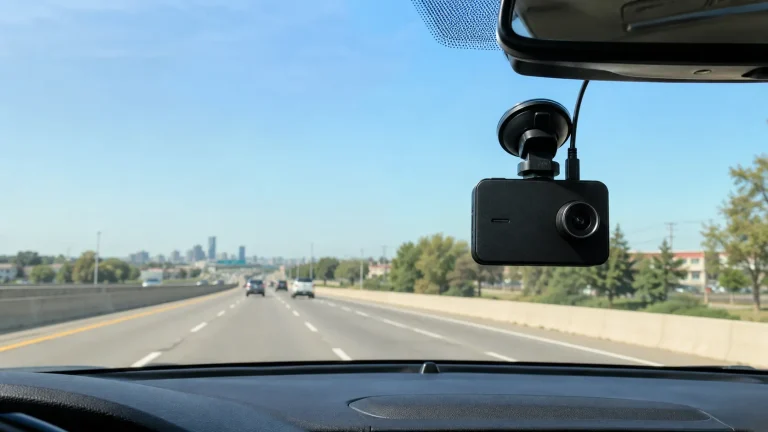
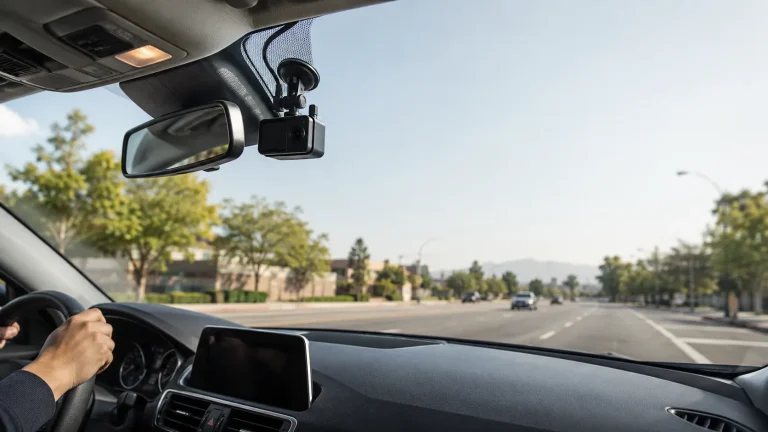
Most dash cam audio problems come from a muted microphone, an app permission, or a corrupted SD card. Work through the seven fixes below in order to restore audio quickly.
If your dash cam not recording audio is turning every drive into a silent movie, you’re not alone — and the fix is usually simpler than you think. This guide walks through the seven most common causes, from a hidden mute switch to a corrupted SD card, so you can restore audio in minutes without replacing the camera.
Key Takeaways
Start simple: Check the physical mute switch and app audio toggle before touching firmware or hardware.
Update regularly: Manufacturers patch audio bugs through firmware and companion app updates.
Maintain the card: Format the SD card in the camera every two to four weeks to prevent.
Check power: Electrical interference from cabling can cause humming or intermittent audio dropouts.
Know the law: State audio consent laws vary, so verify your state’s rules before recording passengers.
Why Your Dash Cam Isn’t Recording Audio: Diagnose in 60 Seconds
Most dash cam audio failures fall into one of three categories: the microphone is muted, the app or firmware is blocking audio, or the file system is corrupting the audio track. Before you spend money on a new camera, run through these quick checks.
Quick Checks Before You Dive Into Settings
Look for a physical mute switch or a microphone icon on the camera body.
Open the companion mobile app and check the audio recording toggle.
Check the on-screen menu for a “Record Audio” or “Mic” option.
Restart the dash cam by unplugging it from power for ten seconds.
Hardware vs. Software: How to Tell the Difference Fast
If the camera records video but no audio on every file, the problem is almost always a setting, a physical switch, or a firmware bug. If audio cuts out intermittently or only on certain clips, suspect a corrupted SD card or a power-related issue. If you hear static or a low hum on the audio track, the problem is likely electrical interference from the power source.
Fix 1: Unmute the Microphone and Locate the Physical Switch
Locate the physical microphone switch on the dash cam and slide it to the
Start with the simplest fix. Many dash cams have a small physical switch or a microphone icon button on the side or top of the device. Check the camera’s manual to see exactly where the mute control sits on your model. Some models also mute audio automatically when you use voice control or when parking mode is active.
Where Mute Controls Sit on Popular 2026 Dash Cams
On many 2026 models, the mute control is a small button with a microphone icon, often near the power button or along the top edge. Some models place the mic toggle inside the on-screen menu, while others use a combination of buttons. If you can’t find it, check the manufacturer’s manual or support page for your exact model.
Fix 2: Enable Audio Recording in the Mobile App and On-Screen Menu
If the physical switch is in the correct position, the next place to check is the software. Most dash cams pair with a companion app, and the audio recording toggle can be buried in the settings menu. On the camera itself, look for a microphone icon in the menu and ensure it’s set to “On.” Some cameras also have separate audio settings for normal driving and parking mode, so check both.
App Permissions: Why iOS and Android Handle Mic Access Differently
If you control the camera through a mobile app, the app needs microphone permission from your phone — even if the camera has its own microphone. On iOS, you’ll find this under Settings > Privacy > Microphone. On Android, it’s under Settings > Apps > [App Name] > Permissions. If the app doesn’t have mic access, it may not be able to toggle audio recording on the camera, or it may record silent video when you use the app to start a recording.
Android devices are more fragmented than iPhones, so the exact menu path varies by manufacturer. Some Android phones also have a “mic access” quick toggle in the notification shade that can block all apps from using the microphone. Check that too if audio suddenly stopped working after a phone update.
Fix 3: Update Dash Cam Firmware and the Companion App<
Updating the dash cam firmware through its companion app can restore audio recording.
/h2>
Firmware bugs can disable audio recording entirely. Manufacturers regularly release updates that fix audio glitches, improve stability, and add features. Check the manufacturer’s website or the companion app for a firmware update. Outdated apps can also cause problems, especially after a phone OS update changes how apps access the microphone.
How to Check Your Firmware Version and Update It Safely
To check your firmware version, open the app and look for “Device Info” or “Firmware Version,” or check the camera’s on-screen menu. Download updates only from the manufacturer’s official website or through the official app. During the update, keep the camera connected to power and don’t remove the SD card. A failed firmware update can leave the camera unusable, so follow the manufacturer’s instructions carefully.
Fix 4: Test the Built-In Microphone With a Direct Recording
To isolate the problem, record a short clip with the dash cam while parked. Speak clearly near the camera, then play the clip back on the camera’s screen or in the app. If you hear audio, the microphone works and the problem lies elsewhere — likely in your playback setup or a previous setting. If the clip is silent, the microphone itself may be faulty.
Try this test with the engine off and again with the engine running. If audio works with the engine off but disappears or hums with the engine on, the problem is electrical interference from the vehicle’s power system. That points you directly to Fix 6. Always run this test while parked, never while driving.
Fix 5: Format the SD Card and Check Playback on Another Device
A corrupted SD card is one of the most common reasons audio disappears from dash cam footage. Over time, the card’s file system can develop errors, and the camera may write video and audio tracks incorrectly. Formatting the card inside the camera — not on a computer — clears these errors and restores normal recording.
Before formatting, back up any footage you want to keep. Then use the camera’s built-in format function, which is usually in the settings menu. Formatting on a computer can create a file system the camera doesn’t fully support, so always format in the camera when possible.
Corrupted Files and Codec Issues That Erase Audio Tracks
Some dash cams store video and audio in separate tracks within the same file. If the card is slow or corrupted, the audio track may fail to write, leaving you with silent video. Playback on a computer may also fail to decode the audio if the codec isn’t supported. Try playing the clip in the dash cam’s own app or a media player that supports the camera’s codec before assuming the audio is missing.
If you regularly play back footage on a phone or computer, make sure your media player supports the camera’s file format. Many dash cams use H.264 or H.265 video with AAC audio. Older media players may play the video but skip the audio track entirely.
Fix 6: Inspect Power Cabling and Eliminate Electrical Interference
Dash cams need clean, stable power. A weak or noisy power supply can cause intermittent audio dropouts or a constant hum on the recording. If you’re using the included 12V adapter, try a different USB cable or a different power socket in the car. Cables with poor shielding are a common source of audio interference.
Ground Loops, 12V Sockets, and Parking-Mode Power
A ground loop occurs when the dash cam and the vehicle’s electrical system create a difference in ground potential, producing a low-frequency hum in the audio. This is common with hardwired installations. A ground loop isolator can eliminate the hum. If you’re using a hardwire kit, check that the ground wire is securely attached to a clean, bare metal surface — not to a painted bolt or a plastic trim piece.
Parking-mode power can also cause issues. Some hardwire kits have a low-voltage cutoff that protects your car battery, but if the cutoff threshold is set too high, the camera may shut down and restart repeatedly, interrupting audio recording. If your camera records silent video only after parking mode engages, check the low-voltage cutoff setting in the menu.
Fix 7: Factory Reset, Warranty, and When to Replace the Dash Cam
If none of the previous fixes restore audio, a factory reset can clear stubborn settings conflicts. This returns the camera to its original state, which often resolves software glitches that hide in the settings menu.
How to Perform a Full Reset Without Losing Footage
Before resetting, remove the SD card and back up any footage you want to keep. Then, in the camera’s menu, look for “Factory Reset” or “Restore Defaults.” If the camera becomes unresponsive, check the manual for a reset button or pinhole. After the reset, you’ll need to reconfigure your settings, including date, time, and audio recording.
If the camera still records silent video after a reset, the internal microphone may be faulty. Check the warranty terms — many dash cams include a 12-month or longer warranty. If the camera is out of warranty, weigh the cost of a repair against the price of a new unit. Entry-level dash cams are often affordable enough that replacement makes more sense than a repair. Don’t try to open the camera to fix the microphone yourself; opening the case can damage the device, void the warranty, and create an electrical hazard.
Audio Privacy, State Laws, and Responsible Recording
Once your audio is working, make sure you’re recording legally. Dash cams with audio are legal in most states, but the rules vary. Some states require all parties to consent to being recorded, while others only require one party’s consent.
One-Party vs. Two-Party Consent States in 2026
As of 2026, the majority of states follow one-party consent rules, meaning you can record audio as long as one person in the conversation — typically the driver — consents. However, a number of states have two-party consent laws, which require everyone being recorded to agree. The law varies by state, and it’s your responsibility to know the rules where you drive. If you’re unsure, the safest option is to disable audio recording when passengers are in the car or rely on video-only footage.
Audio recording also matters if you ever need to use your footage in an insurance claim or legal dispute. Footage with audio can be more persuasive, but it can also raise privacy questions. Check our guide on when dash cam footage is admissible to understand how audio affects the evidence.
Before you decide where to mount your camera, also review our guide on where not to put a dash cam to avoid visibility and airbag issues. And if you’re shopping for a replacement, our roundup of the best budget dash cams with app support is a good place to start.
Final Verdict
Best for: Most drivers will restore audio by checking the mute switch, enabling audio in the app, and formatting the SD card.
Think twice if: You’ve tried all seven fixes and still get silent video — the internal microphone may be faulty.
Next step: Check your warranty status before buying a replacement, and verify your state’s audio consent law before recording passengers.
Frequently Asked Questions
The most common causes are a muted microphone, an audio recording setting turned off in the app or on-screen menu, outdated firmware, or a corrupted SD card. Work through the seven fixes in this guide in order to find the cause.
Look for a physical mute switch or microphone icon on the camera body, then check the on-screen menu and companion app for a “Record Audio” or “Mic” setting. Some cameras have separate audio toggles for driving and parking modes.
Yes. A corrupted or slow SD card can cause the audio track to fail to write, leaving silent video. Format the card inside the camera every two to four weeks to prevent this.
It depends on your state. Most states are one-party consent states, but some require all parties to consent to being recorded. Check your state’s current law before recording audio, especially with passengers in the car.
Every two to four weeks, depending on how much you drive. Dash cams write continuously, so cards wear out faster than standard memory cards. A high-endurance card lasts longer and reduces corruption.
If you’ve tried all seven fixes, including a factory reset, and the camera still records silent video, the internal microphone may be faulty. Check the warranty first; if it’s expired, compare repair cost against the price of a new camera.
Hi, I'm Ethan Carter, and I've spent over a decade testing automotive electronics, dash cams, and interior accessories. I created TopBestCar.com to help car owners cut through marketing hype and find gear that actually performs for their exact make and model — backed by hands-on testing, spec comparisons, and real owner feedback.