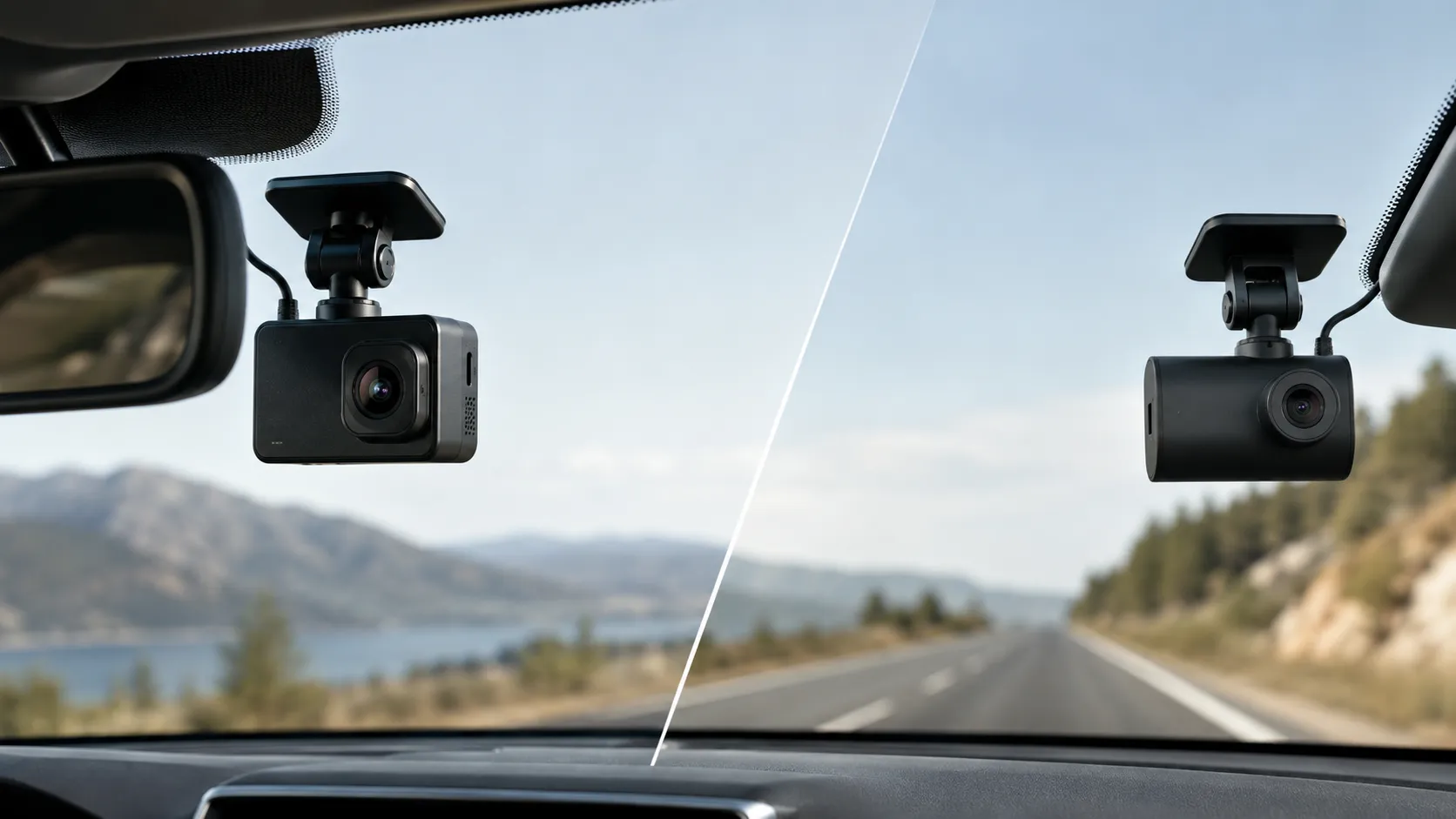
A dash cam WiFi not connecting issue usually stems from phone settings, app permissions, or outdated firmware—not a dead camera. Work through phone-side checks first, then camera-side resets, before considering hardware failure.
If you’re dealing with a dash cam WiFi not connecting issue, you’re not alone—this is one of the most common frustrations owners report after installation. The good news is that most connection failures trace back to a handful of fixable causes, from phone settings to firmware glitches, and you can usually resolve them without replacing the camera.
Key Takeaways
Phone-first approach: Most WiFi failures trace to phone settings, app permissions, or wrong passwords—check these before.
Firmware matters: Outdated camera firmware or app versions are a leading cause of connection failures; update.
Mounting affects signal: Metal brackets and thick plastic near the camera antenna can weaken WiFi; reposition if.
Safety first: Never troubleshoot WiFi while driving—pull over to a safe location before touching the app.
Know your costs: Basic WiFi is free, but cloud storage features typically require a subscription after a.
Direct Answer: What dash cam WiFi not connecting Means for Owners and Drivers
When your dash cam WiFi won’t connect, it means the camera’s built-in wireless network is not establishing a stable link with your smartphone app. This typically prevents you from viewing live footage, downloading recorded clips, adjusting settings, or updating firmware through the app. For most owners, the issue appears as a “connection failed” message, a spinning loading screen, or the camera’s WiFi network not showing up at all in your phone’s list of available networks.
The root cause is rarely a dead camera. More often, it’s a combination of phone settings, app permissions, interference, or outdated firmware on either device. Understanding the difference between a camera-side failure and a phone-side issue is the first step toward a fix.
How It Works and What It Can Actually Do
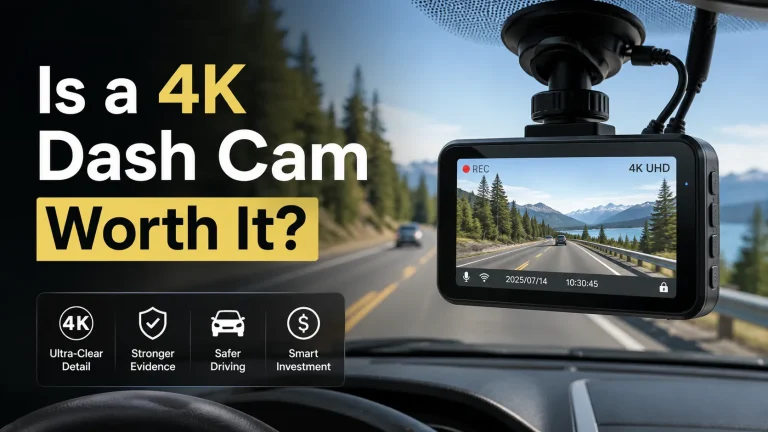
Dash cams use WiFi to transfer recorded video files to a smartphone app.
Dash cam WiFi isn’t like home WiFi. Most dash cams create their own ad-hoc wireless network that your phone connects to directly, rather than joining your home or mobile hotspot. This direct connection allows the camera and phone to communicate without an internet connection, which is useful in remote areas or when you’re on the road.
Once connected, the companion app typically lets you:
View live or recorded footage directly on your phone
Download and share video clips with your insurance company or others
Adjust recording settings like resolution, loop length, and parking mode
Update the camera’s firmware to fix bugs and add features
Format or manage the storage card without removing it
Some newer models also support cloud-based features, which require an internet connection through your phone’s data plan or a built-in cellular module. Cloud features are a different category from the direct WiFi link and often carry separate subscription costs. If your camera supports both, the troubleshooting steps differ depending on which connection method you’re using.
Vehicle Compatibility and Installation Requirements
Before you dive into troubleshooting, confirm that your phone and dash cam are actually compatible. Most dash cam apps are available for both iOS and Android, but older camera models may not support the latest phone operating systems. Check the manufacturer’s app compatibility list or the app store description for supported OS versions.
Vehicle Compatibility
Check: Verify that your dash cam model supports your phone’s operating system version, and that your vehicle’s 12V outlet or hardwire kit provides the correct voltage. Some dash cams also require a specific app version that may not be available for older phones. Limitations: Certain budget dash cams only support 2.4GHz WiFi, which can conflict with phones that prioritize 5GHz networks. Check the camera’s specifications before assuming it’s a phone problem.
Installation also plays a role in WiFi performance. If the camera is mounted behind a metal bracket or in a location that blocks the antenna, the signal strength can drop. Most dash cams transmit WiFi from the camera body itself, so keeping the antenna area clear of metal surfaces and thick plastic can improve reliability. If you’re planning a new install, review the dash cam hardwire kit guide for proper power routing and placement tips.
Safety, Visibility, Power, and Driver-Use Considerations<
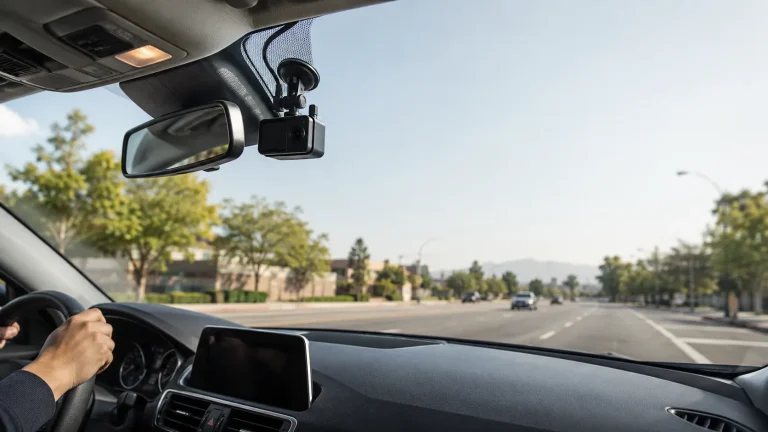
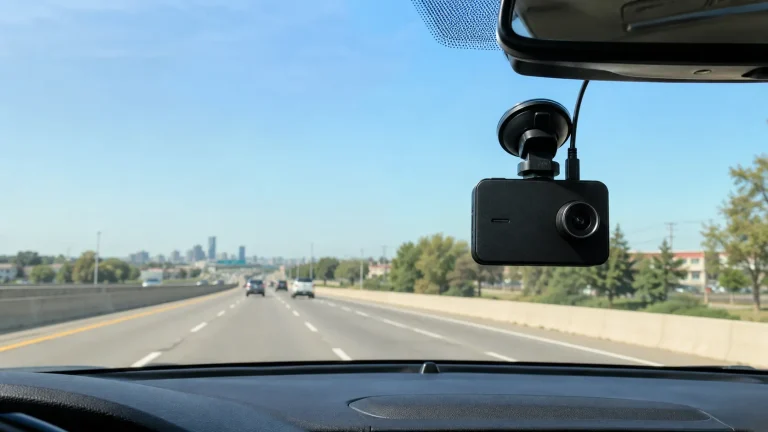
A front-facing dash cam mounted on the windshield records the road ahead.
/h2>
Where you mount the camera affects both WiFi signal and driver safety. The camera should sit behind the rearview mirror, out of your direct line of sight, and should not block any airbags, sensors, or the windshield’s clear zone. A poorly placed camera can create a blind spot or interfere with advanced driver assistance systems (ADAS) that rely on camera-based sensors.
Never attempt to adjust dash cam settings, reconnect WiFi, or download footage while the vehicle is in motion. Park in a safe spot, engage the parking brake, and complete any app or camera configuration before resuming your trip.
Power is another consideration. Some dash cams reduce WiFi output or disable it entirely when running on battery power in parking mode to conserve energy. If your camera is hardwired, check whether the low-voltage cutoff is set correctly—if the battery voltage drops too low, the camera may shut down or limit features, including WiFi. This is especially relevant if you use parking mode regularly. For more on this topic, see our guide on budget dash cam parking mode options.
Features, Limitations, and Ownership Costs
Dash cam WiFi is a convenience feature, not a requirement for recording. The camera will continue to record to the memory card even when WiFi is disconnected. The limitation is that you lose remote access to footage and settings until the connection is restored.
Cloud-based dash cams add another layer. These models can upload selected clips to a cloud service, but they typically require a paid subscription for ongoing cloud storage. The WiFi connection itself is free, but the cloud service is a separate cost. Some manufacturers bundle a limited free trial period, after which you’ll need to subscribe to keep cloud features active. Check the dash cam monthly fee guide to understand what recurring costs you might face.
Ownership Cost
Upfront costVaries by model; budget cams from $50–$100, premium models $200–$400+
Possible extrasHardwire kit, high-endurance memory card, cloud subscription
Ongoing costNone for basic WiFi use; cloud storage typically $5–$15/month
Setup, Testing, and Maintenance
Here’s a practical troubleshooting sequence for a dash cam WiFi not connecting issue. Work through these steps in order, testing after each one.
1
Verify the camera is powered on and recording
If the camera is off or in a low-power state, WiFi will not broadcast. Confirm the camera is receiving power and the status LED indicates normal operation.
2
Check your phone’s WiFi settings
Make sure WiFi is enabled, and look for the camera’s network name (SSID). If it doesn’t appear, move the phone closer to the camera and try again. If your phone is set to auto-join other networks, disable that temporarily.
3
Enter the correct WiFi password
Most dash cams have a default password printed on the manual or a sticker on the camera body. If you changed it previously and forgot it, you may need to reset the camera to factory defaults.
4
Close and reopen the app
Force-quit the dash cam app on your phone, then relaunch it. Sometimes the app’s connection state gets stuck and needs a fresh start.
5
Update firmware and app
Check the manufacturer’s website or app store for firmware updates for the camera and app updates for your phone. Outdated versions are a common cause of connection failures.
6
Reset the camera’s WiFi module
Some models have a dedicated WiFi reset button or a menu option to restart the wireless module. Consult the user manual for your specific model.
After each step, test the connection. If the camera connects but drops frequently, the issue may be interference from other wireless devices, a weak phone antenna, or a damaged camera WiFi module.
Keep your dash cam’s firmware updated, clean the lens and windshield regularly, and format the memory card in-camera every few weeks to prevent file corruption. A healthy card and current firmware reduce the chance of app and WiFi issues over time.
Common Mistakes and When to Get Professional Help
Several mistakes can make a dash cam WiFi not connecting problem worse. Here’s what to avoid and when to stop troubleshooting on your own.
Do
Confirm your phone’s OS is compatible with the dash cam app
Change the default WiFi password to something unique
Test the connection while parked, not while driving
Keep the memory card formatted and healthy
Don’t
Attempt to rewire or modify the camera’s antenna or power system
Ignore persistent connection failures—they may indicate a hardware fault
Leave the default WiFi password unchanged if the camera is visible to others
Assume the camera is broken before checking phone-side settings
If you’ve worked through the troubleshooting steps and the camera still won’t connect, it’s time to consider hardware issues. A failing WiFi module, a damaged antenna, or a corrupted firmware installation can all cause persistent connection failures. Contact the manufacturer’s support team with your model number, firmware version, and a description of the symptoms. If the camera is under warranty, they may offer a replacement or repair.
For installation-related problems—such as power issues, hardwiring mistakes, or placement that blocks the WiFi signal—a professional installer can help. This is especially relevant if you’re using a hardwire kit and suspect the power connection is causing the camera to behave unpredictably. Before purchasing a new dash cam, review the before buying dash cam checklist to ensure you pick a model with reliable WiFi and app support. Not all budget cameras have polished apps, and some manufacturers are slow to update firmware for new phone operating systems.
Final Recommendation
A dash cam WiFi not connecting problem is almost always solvable without replacing the camera. Start with the phone-side checks: verify WiFi is enabled, confirm the correct network and password, and restart the app. Then move to camera-side steps like firmware updates and WiFi resets. If the issue persists after a full troubleshooting pass, contact the manufacturer for warranty support or consult a professional installer for power or placement issues.
Final Verdict
Best for: Owners who want to access footage and settings through their phone without removing the memory card.
Think twice if: You rely on cloud features that require a stable internet connection and ongoing subscription costs.
Next step: Work through the six-step troubleshooting sequence above, and if the issue persists, contact the manufacturer with your model and firmware details.
Ultimately, a dash cam’s WiFi connection is a convenience that enhances the value of your investment. When it works, you can pull critical footage in seconds, adjust settings on the go, and keep your firmware current. When it doesn’t, a systematic approach to troubleshooting will resolve most cases—and knowing when to call in professional help saves you time and frustration.
Frequently Asked Questions
The most common causes are phone app permissions, incorrect WiFi passwords, frequency band mismatches, and outdated firmware on either the camera or the phone. Start by checking your phone’s WiFi settings and confirming the camera is powered on and broadcasting its network.
Most dash cams have a dedicated WiFi reset button or a menu option to restart the wireless module. Consult your user manual for the specific procedure. If you forgot the WiFi password, you may need to perform a factory reset on the camera.
No. Dash cam WiFi creates a direct connection between the camera and your phone, so it does not consume mobile data. However, cloud-based features that upload footage to the internet will use your phone’s data plan or a separate cellular connection.
Yes. The camera records to the memory card independently of WiFi. WiFi only provides remote access to footage and settings through the app. You can still retrieve recordings by removing the memory card and reading it on a computer.
Frequent disconnects are often caused by wireless interference, a weak phone antenna, or a damaged WiFi module in the camera. Try moving the phone closer, removing metal objects near the camera, and updating firmware. If the problem persists, contact the manufacturer.
No subscription is required for basic WiFi features like live view, downloads, and settings. Cloud storage features, however, typically require a paid monthly or annual subscription after a free trial period ends. Check your camera model’s specifications for cloud service details.
Hi, I'm Ethan Carter, and I've spent over a decade testing automotive electronics, dash cams, and interior accessories. I created TopBestCar.com to help car owners cut through marketing hype and find gear that actually performs for their exact make and model — backed by hands-on testing, spec comparisons, and real owner feedback.
Compare best wireless reverse cameras for safety, compatibility, installation, useful features, and value. Read the guide to find the right choice for your car.